
For serious iPad photo editing, start with Photomator if your work is mostly RAW files and color. Snapseed is the free choice with a wide tool set. Use Photoshop when you need layers and composites. Darkroom fits a large Photos library and repeatable looks.
These apps take different routes to a proper editor on a tablet. Photomator and Darkroom work closely with Apple's photo library. Snapseed keeps its editing tools direct. Photoshop gives you a layered workspace and Adobe's retouching tools. Pick the one that matches the work you want to do, not the longest feature list.
- Photomator for RAW files, masks, and color adjustments
- Snapseed for free local editing and creative tools
- Adobe Photoshop for layers, selections, and composites
- Darkroom for library editing, presets, and color grading
Photomator: the focused RAW editor
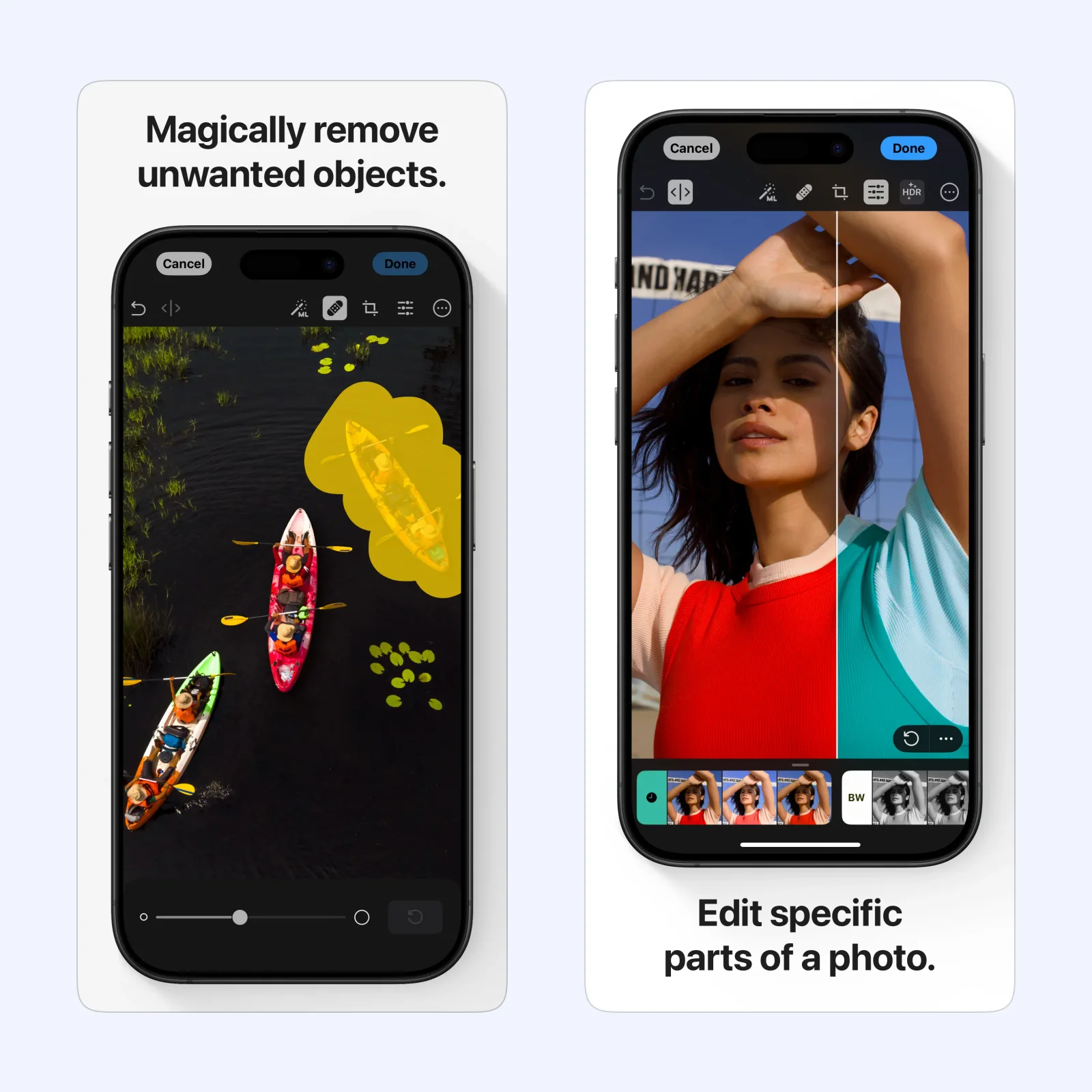
Photomator is built around nondestructive photo edits. It supports more than 750 RAW formats, including Apple ProRAW, and includes white balance, curves, selective color, color balance, and LUT tools. You can use masks for a subject, sky, or background, then copy edits to other photos or batch edit a group.
It runs on iPhone, iPad, and Mac. The App Store offers a free trial, then monthly, yearly, and lifetime purchase options. Broadly, it is a free download with paid Pro access. Its strength is controlled photo correction without the extra layers and design tools of Photoshop. The tradeoff is that it is less useful for a poster, collage, or image made from several sources.
Snapseed: the free toolbox
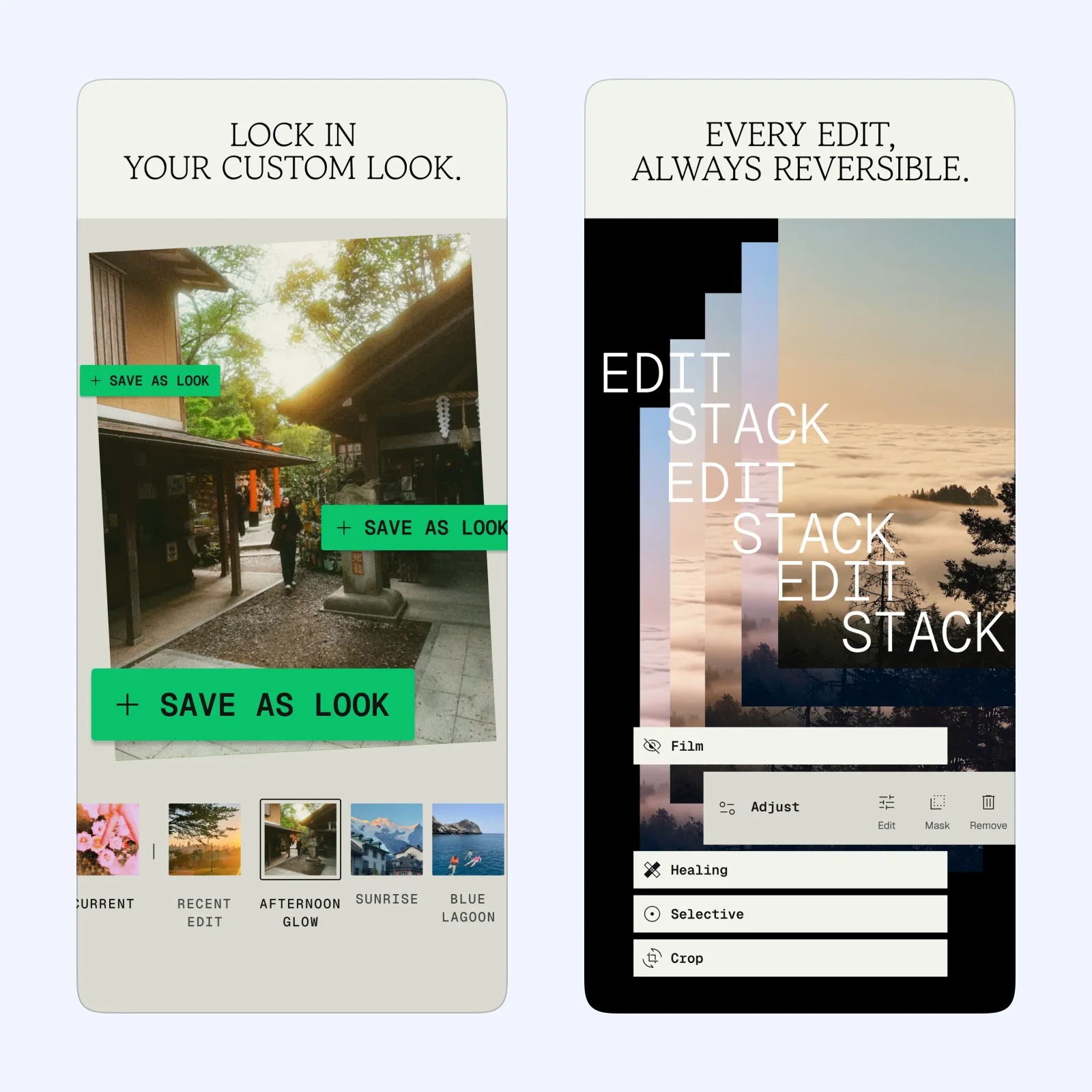
Snapseed gives you more than 30 tools and filters with no subscription, in-app purchase, ads, or watermark. Its tools include curves, selective adjustments, healing, perspective, double exposure, RAW development for some file types, and film looks. You can save a look and apply edits to a batch of photos.
The app is free on iPhone and iPad. Google also supports a before view and a reversible edit history, so you can compare a change without losing the original. Snapseed suits someone who wants to open a photo, make a careful correction, and export it without creating an account. It does not provide Photomator's large RAW catalog or Photoshop's layer model, and its broad tool list takes time to learn.
Adobe Photoshop: for layers and composites

Adobe Photoshop on iPhone and iPad uses layers, selections, masks, and adjustments to combine images. You can remove or replace backgrounds, retouch a subject, add objects, crop, resize, and build a collage. The current mobile app also includes an AI Assistant and generative tools. Adobe says the interface supports touch and Apple Pencil.
Photoshop is free to download, with paid plans for extra tools and exports. The App Store lists separate mobile and iPad subscription options. Choose it when you want to move beyond one photo and make a composite, cover image, or layered design. That power adds friction. A simple exposure correction can feel like too much work when you only want to fix a holiday photo.
Darkroom: edit the library you already have
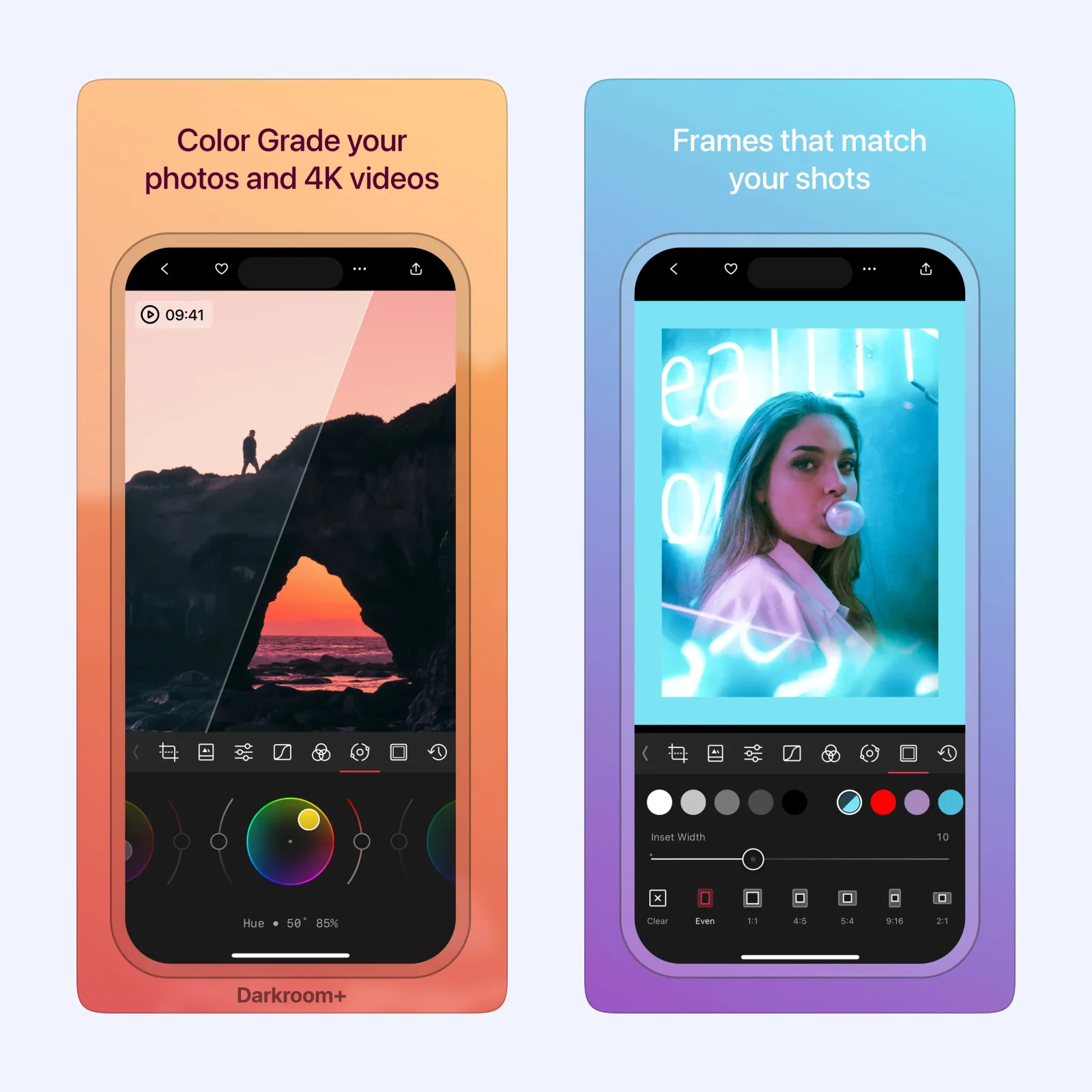
Darkroom works directly with your Photos library on iPhone, iPad, and Mac. It provides crops, curves, masks, healing, presets, RAW editing, and color grading. You can create your own looks, edit photos in batches, and use the same membership across Apple's supported devices. It also includes video editing, which can be useful if your library holds both photos and short clips.
Darkroom is free to download with paid Darkroom+ features. The developer lists monthly and yearly plans, plus an option to unlock the app forever in some App Store regions. Pick it when you want to browse, edit, and export from one library. The tradeoff is that its strongest features sit behind the membership, and it is less suited to a multilayer composition than Photoshop.
Which one should you try?
Photomator fits RAW photography and careful color work. Snapseed makes sense when free, direct editing matters most. Photoshop is for layers, background changes, and composites. Darkroom suits a large Apple Photos library that needs consistent presets and batch edits.
For your first test, pick one photo you know well. Make one crop, one color change, and one export. If you want to keep the original easy to recover, use a nondestructive edit or export a copy before you try stronger tools.