
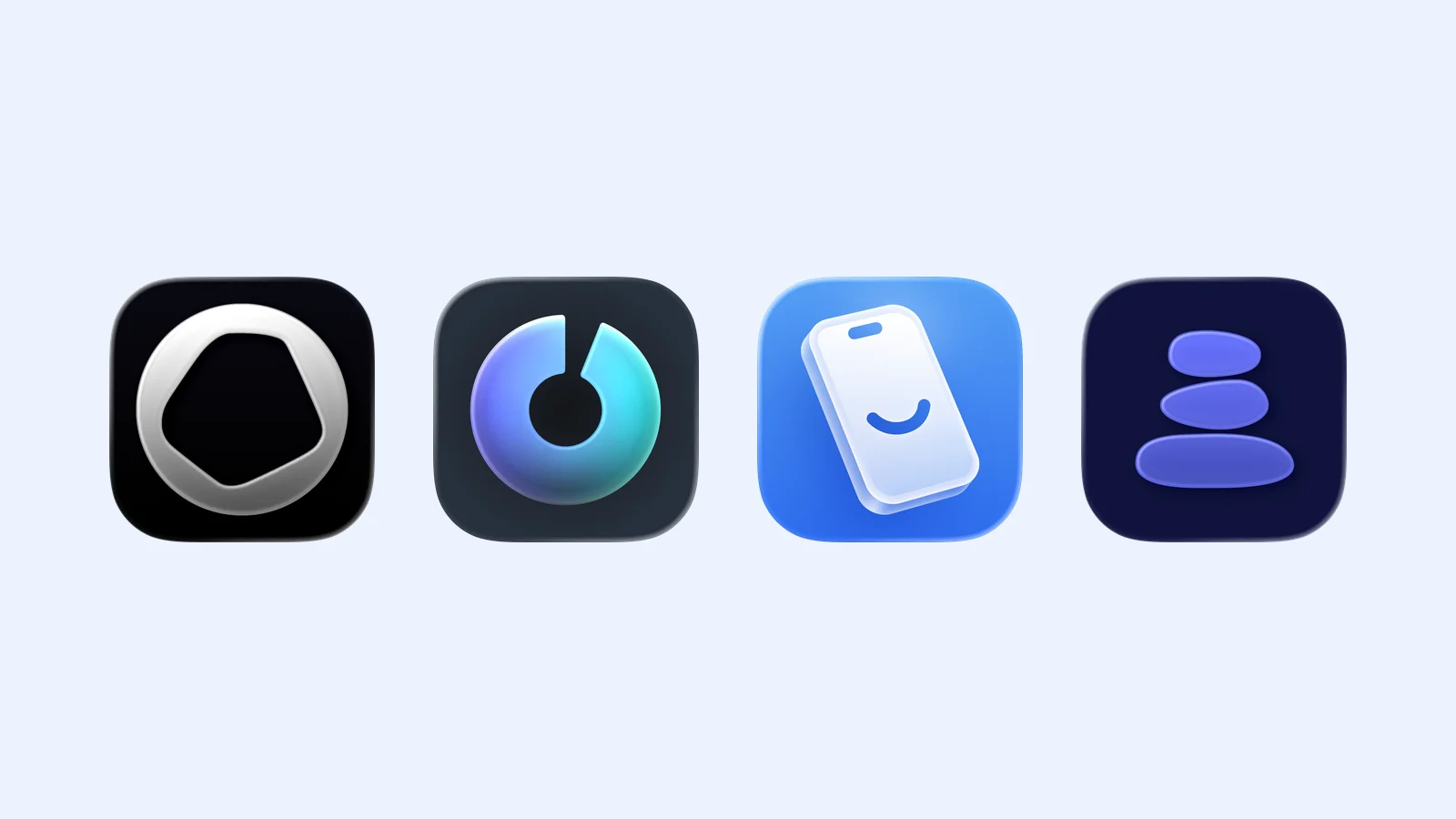
Screen-time apps do not all stop scrolling in the same way. Some set a daily limit. Others ask you to pause before an app opens, block it at certain times, or control the length of each visit.
The best choice depends on where the habit starts. A hard limit helps when you lose track of time. If you still need regular access, a short pause may be easier to keep active.
- Opal for daily limits
- one sec for a pause before an app opens
- Jomo for scheduled rules
- ScreenZen for delays and short sessions
Opal: set a daily time budget
Opal lets you set a time budget for selected apps and websites. Shared limits are cumulative. If Instagram and TikTok share a 30-minute limit, 20 minutes in one app and 10 minutes in the other use the full budget. You can also give each app its own allowance.
Opal also has timed focus sessions and stronger blocking options. You can begin with a simple daily cap, then add stricter rules if you need them. The app is free to download and has a paid Pro plan.
Opal suits people whose quick checks often become long sessions. A daily budget gives those sessions a clear stop point.
one sec: interrupt the automatic tap
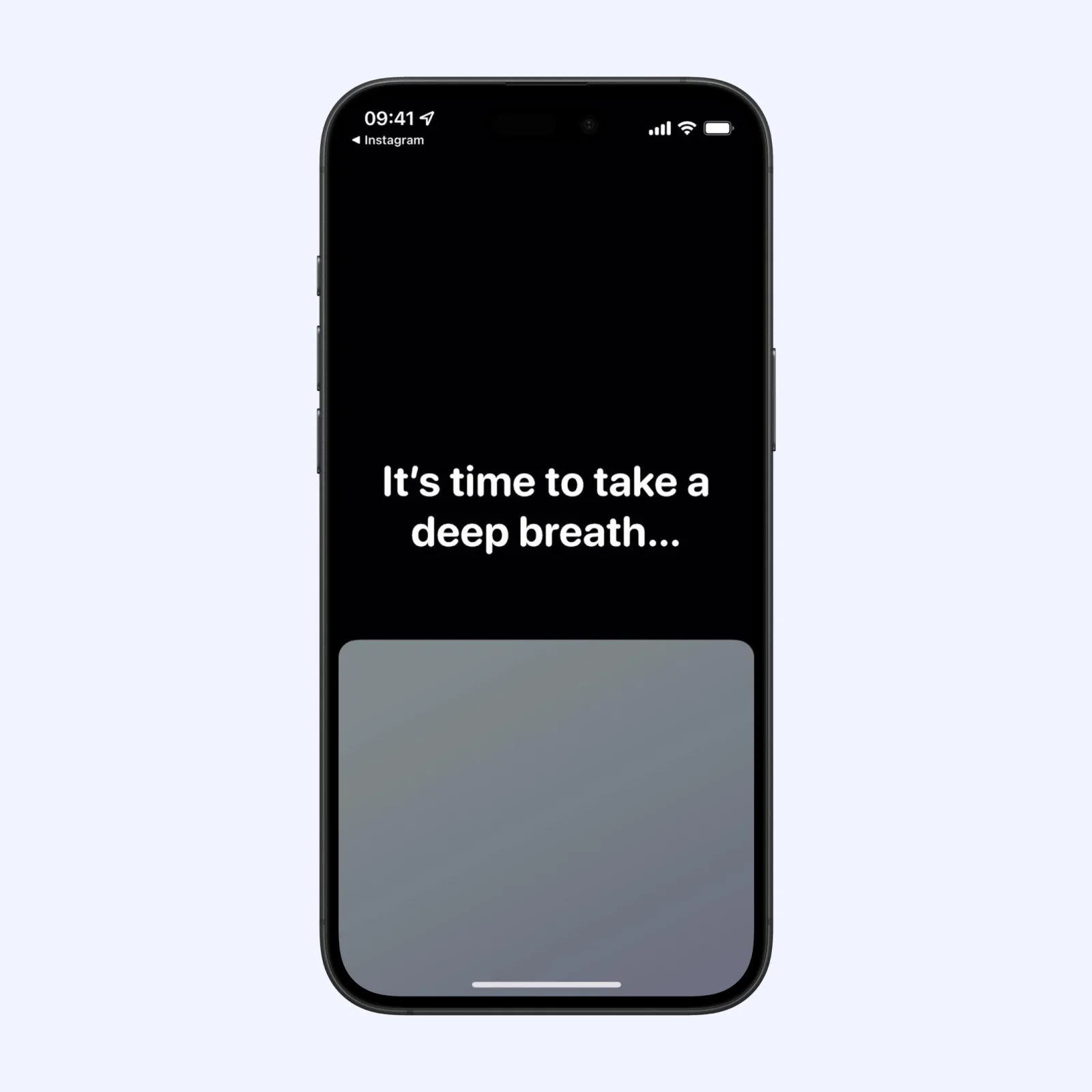
one sec inserts a small action before a distracting app opens. Its default is a breathing exercise, but you can choose other actions. That brief interruption gives you time to decide whether you meant to open the app.
This is not a hard block. You can continue when you have a reason to use the app. The extra step is there for the automatic tap that happens before you think about it.
one sec is available on iPhone, iPad, and Mac. It is free to download and has a paid Pro plan. It is a good fit if you need access to social or entertainment apps but want to make a clear choice before each visit.
Jomo: match blocks to your day
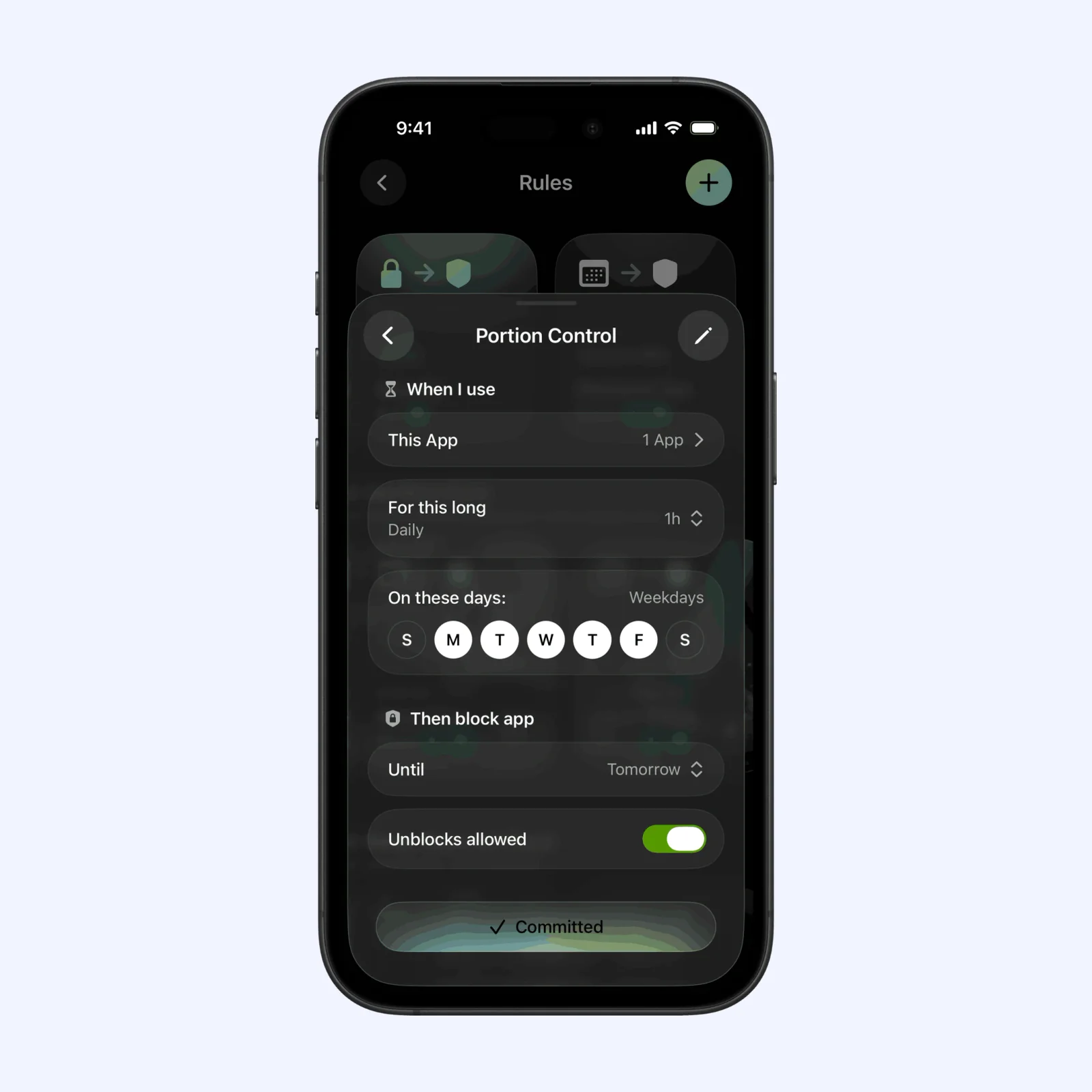
Jomo puts several rule types in one place. You can start a block now, repeat one on a schedule, set a daily limit, or keep an app locked with a small number of timed openings.
Schedules help when your needs change during the day. You can block work distractions during office hours and use a different rule in the evening. Jomo can also block everything except a short list of needed apps.
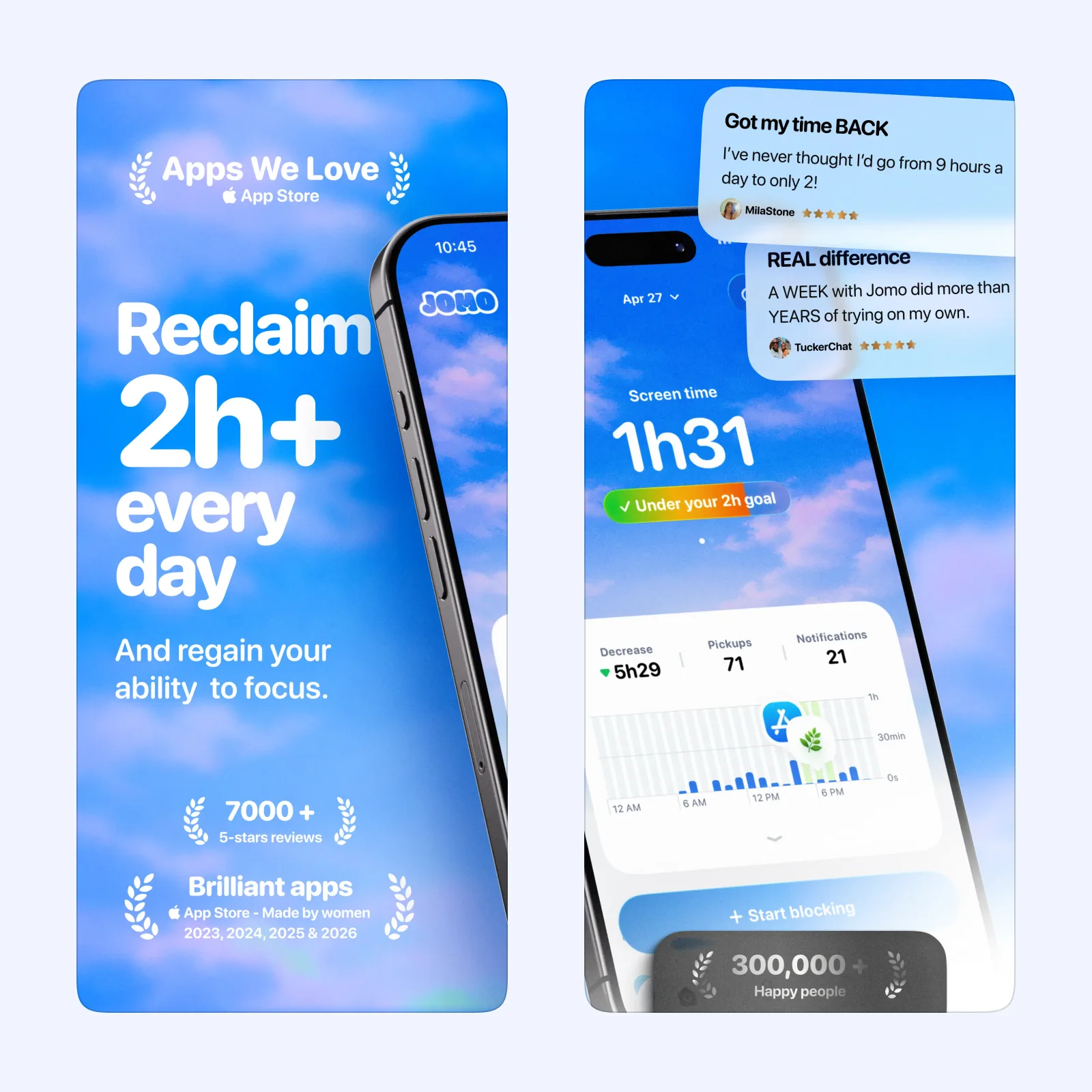
Jomo is available on iPhone, Mac, and Apple Vision. It is free to download and has a paid Plus plan. Pick it if you want separate rules for work, study, and rest instead of one limit for the full day.
ScreenZen: add a delay and cap each visit
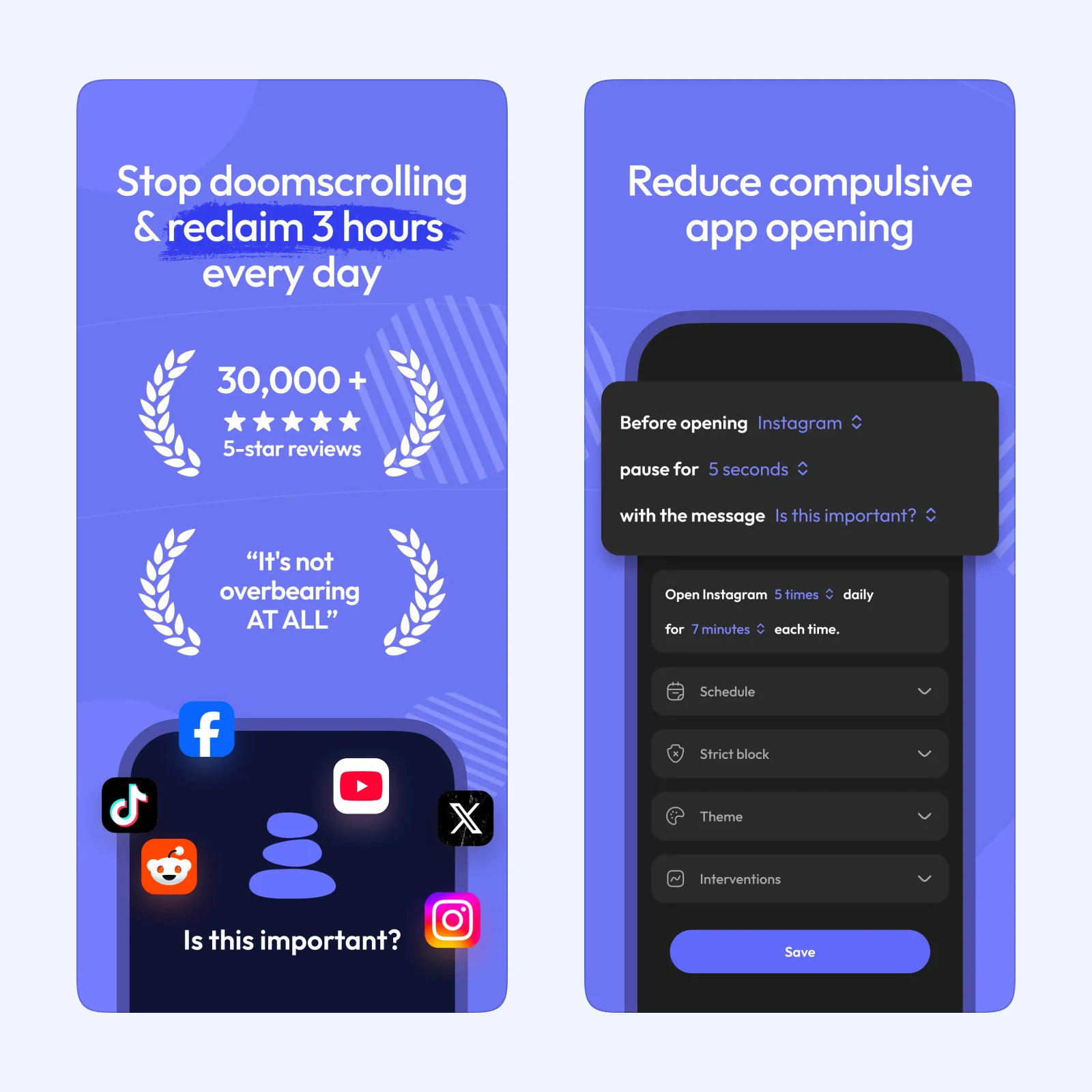
ScreenZen can make you wait before an app opens. It can also limit the length and number of visits. The wait can increase after repeated openings, so returning to the same app takes more effort each time.
You can set daily time goals and use different rules by day and time. ScreenZen is useful if you want several small controls without a subscription. The app is donation supported and has optional in-app purchases.
ScreenZen is available on iPhone, iPad, and Mac. It fits people who prefer short browsing sessions to a full block.
Which one should you try?
Pick the control that matches the moment when you lose time. Opal sets a daily ceiling. one sec interrupts the first tap. Jomo changes its rules with your schedule, while ScreenZen combines a delay with short visits.
Do not block everything at once. Set one rule for one distracting app, then keep it active for a week before you change it.