
Attention apps work at different points in the habit. one sec interrupts the tap. Opal blocks selected apps and sites. Dumb Phone and minimalist phone make the Home Screen less inviting before you tap anything.
Choose the smallest control that changes your behavior. A strict block is useful when a pause is easy to ignore, but a quieter launcher may be enough when colorful icons are the main trigger.
- one sec for an intentional pause
- Opal for timed blocks and limits
- Dumb Phone for a simple text launcher
- minimalist phone for another calm Home Screen
one sec: interrupt the automatic tap
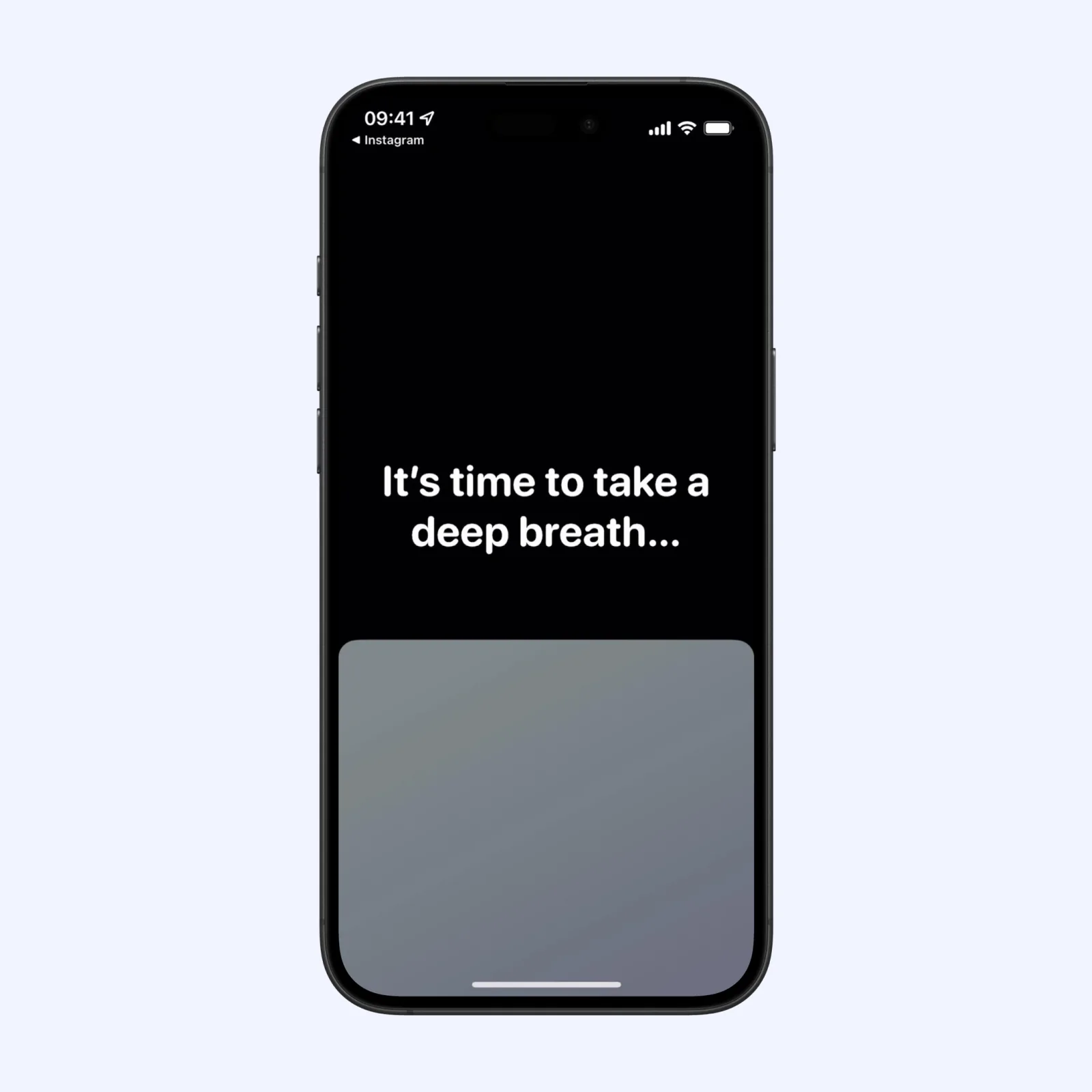
one sec inserts a short action before a selected app opens. A breathing prompt, question, or other intervention gives you time to decide whether the visit was intentional. You can continue when you have a reason, so it is less disruptive than a hard block.
The app runs on iPhone, iPad, and Mac. It is free to download, with a paid Pro plan. Pick it when you still need regular access to social or entertainment apps but want to reduce opening them without thinking.
Opal: create sessions and daily limits
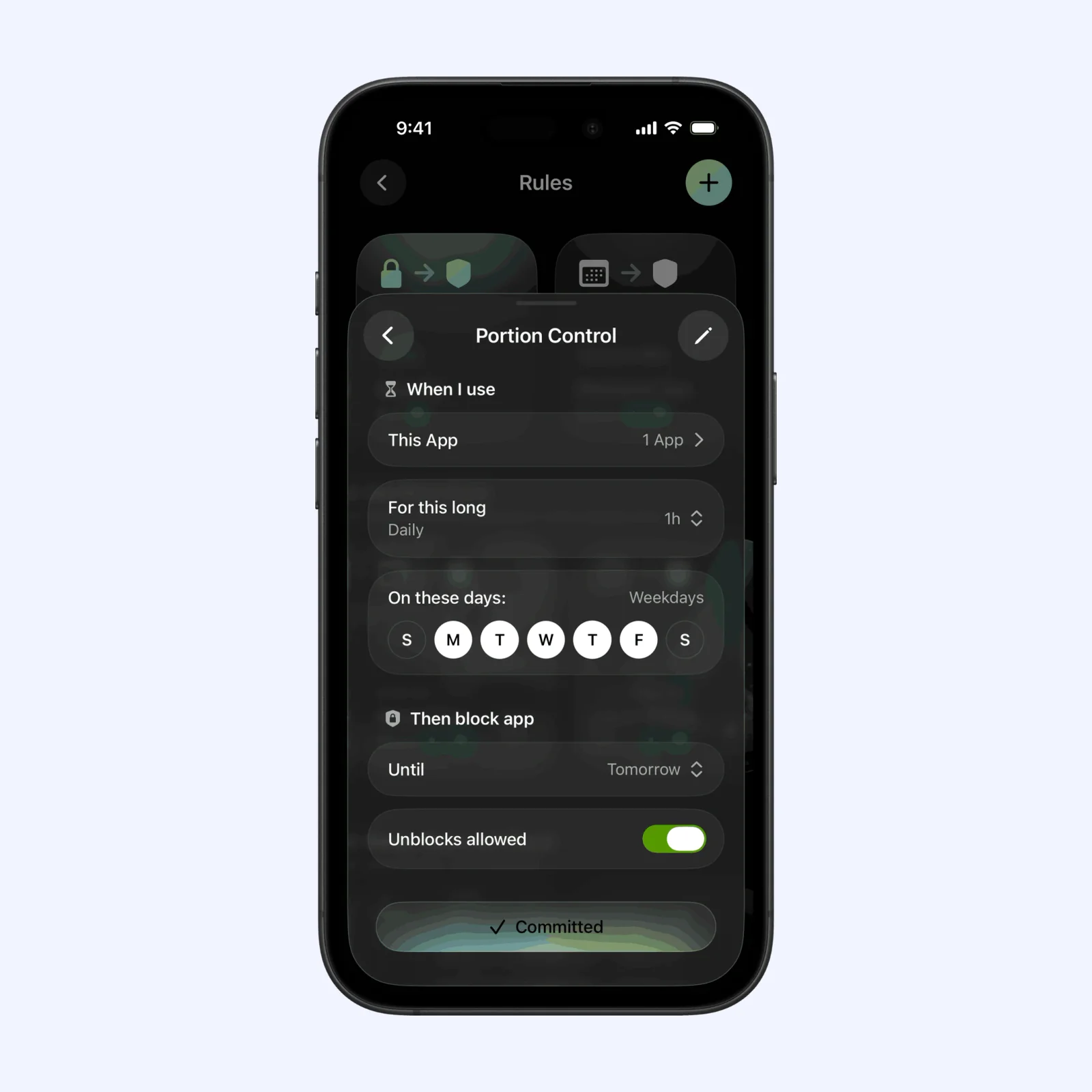
Opal blocks apps and websites during focus sessions and can set daily time budgets. A shared limit can cover several distracting services, while separate limits give each app its own allowance. Stronger modes make the rule harder to bypass.
Opal is free on iPhone and offers a paid Pro plan. It suits people whose short checks often become long sessions. Start with a limit that is lower than your current use but still realistic enough to keep active.
Dumb Phone: replace icons with a short list
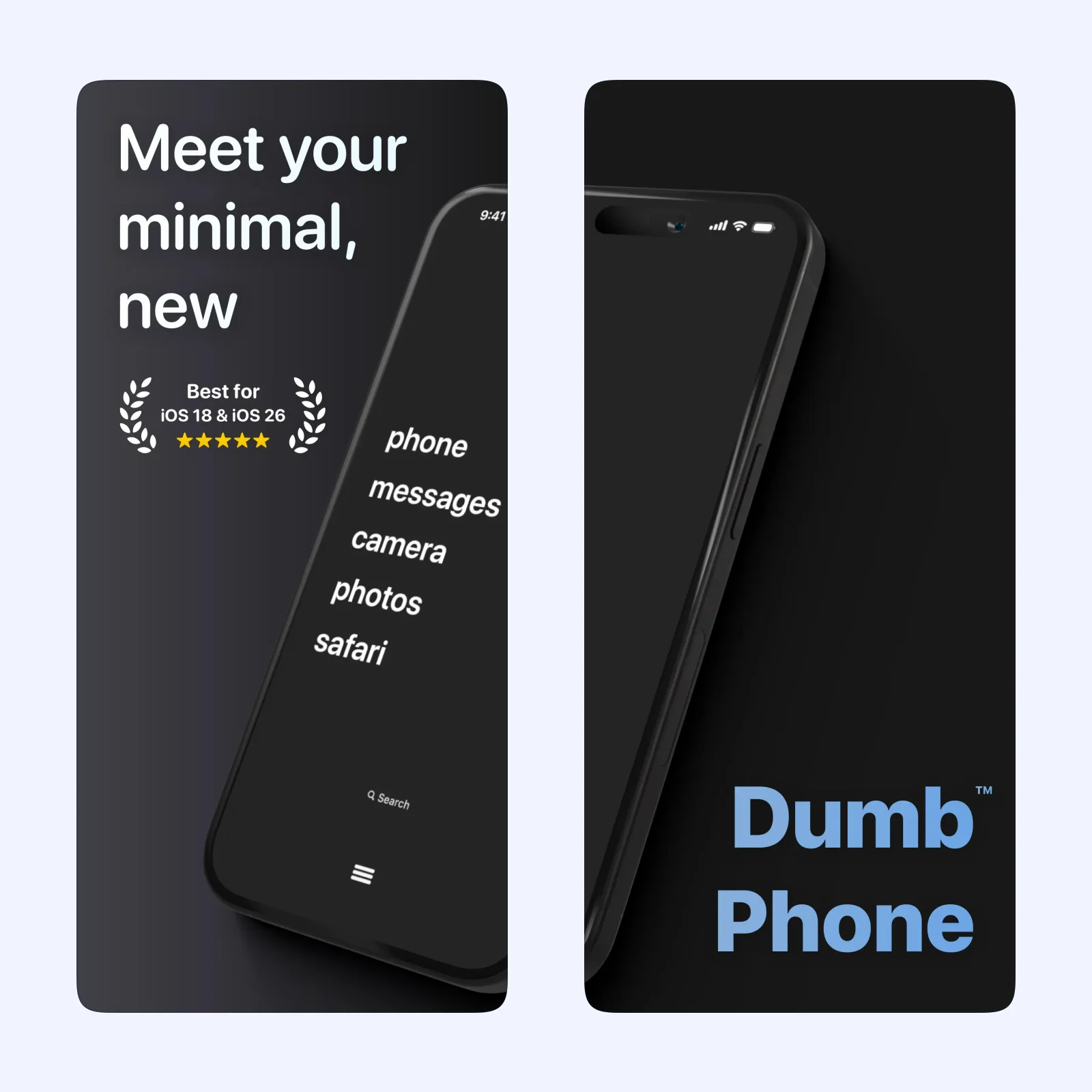
Dumb Phone uses widgets and shortcuts to create a Home Screen made from app names instead of a grid of bright icons. You choose the essential apps that remain visible and move everything else out of immediate reach.
It is free to download on iPhone, with optional paid features. Choose it if the visual pull of the Home Screen starts the problem. The setup changes presentation rather than access, so every app is still available when you search for it.
minimalist phone: make the Home Screen quieter
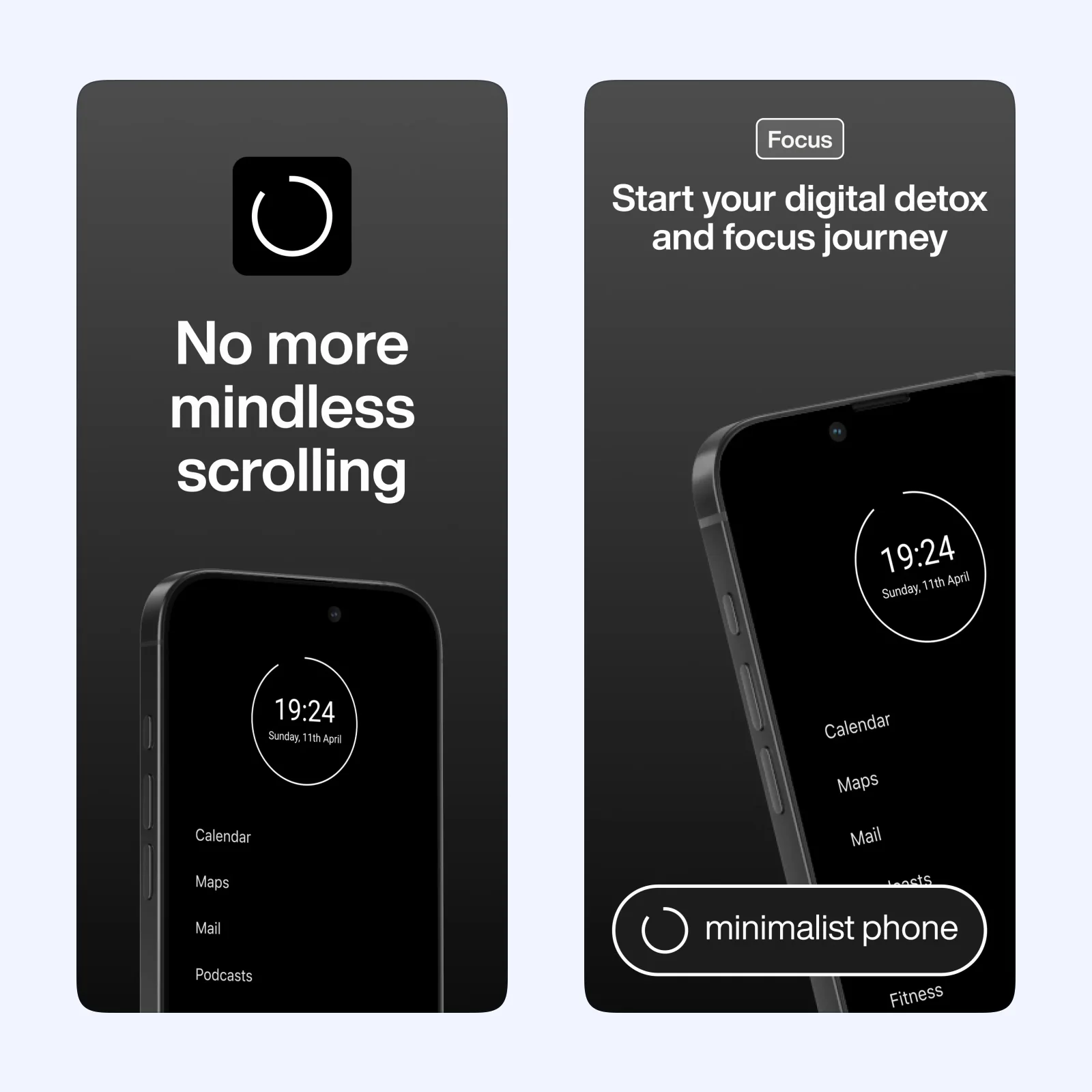
minimalist phone takes a similar approach with a calm text list. It removes much of the visual stimulation from the first screen and puts chosen apps behind simple names. This adds a small amount of friction without a timer.
The app is free to download on iPhone, with a paid plan. It fits people who want a lasting layout change rather than scheduled focus sessions. Keep only the tools you open on purpose in the visible list.
Which one should you try?
Use one sec when the first tap is the weak point. Pick Opal when time disappears after the app is already open. Try Dumb Phone or minimalist phone when the Home Screen itself keeps inviting a check.
The two Home Screen tools can work with Apple's own Screen Time limits, but overlapping systems make failures harder to understand. If an app still opens, you need to know whether the launcher, widget, shortcut, or system limit caused it. Build one layer first and test normal tasks such as calling, navigation, banking, and two-factor authentication.
Also keep an emergency route to essential apps. A calm Home Screen should reduce casual checking without hiding a tool you need quickly while traveling or dealing with a problem.
Do not install all four. Choose one distracting app and one control, then keep the setup unchanged for a week. That gives you a clearer signal than several overlapping restrictions.