
Days gives future dates a visual countdown. You can attach a photo, set a date, and place the result on the Home Screen, so the things you look forward to are visible before you open the app.
It works best for dates that feel more personal than a normal calendar event. A holiday, birthday, release, or reunion becomes something you can watch getting closer.
See the next dates in one list
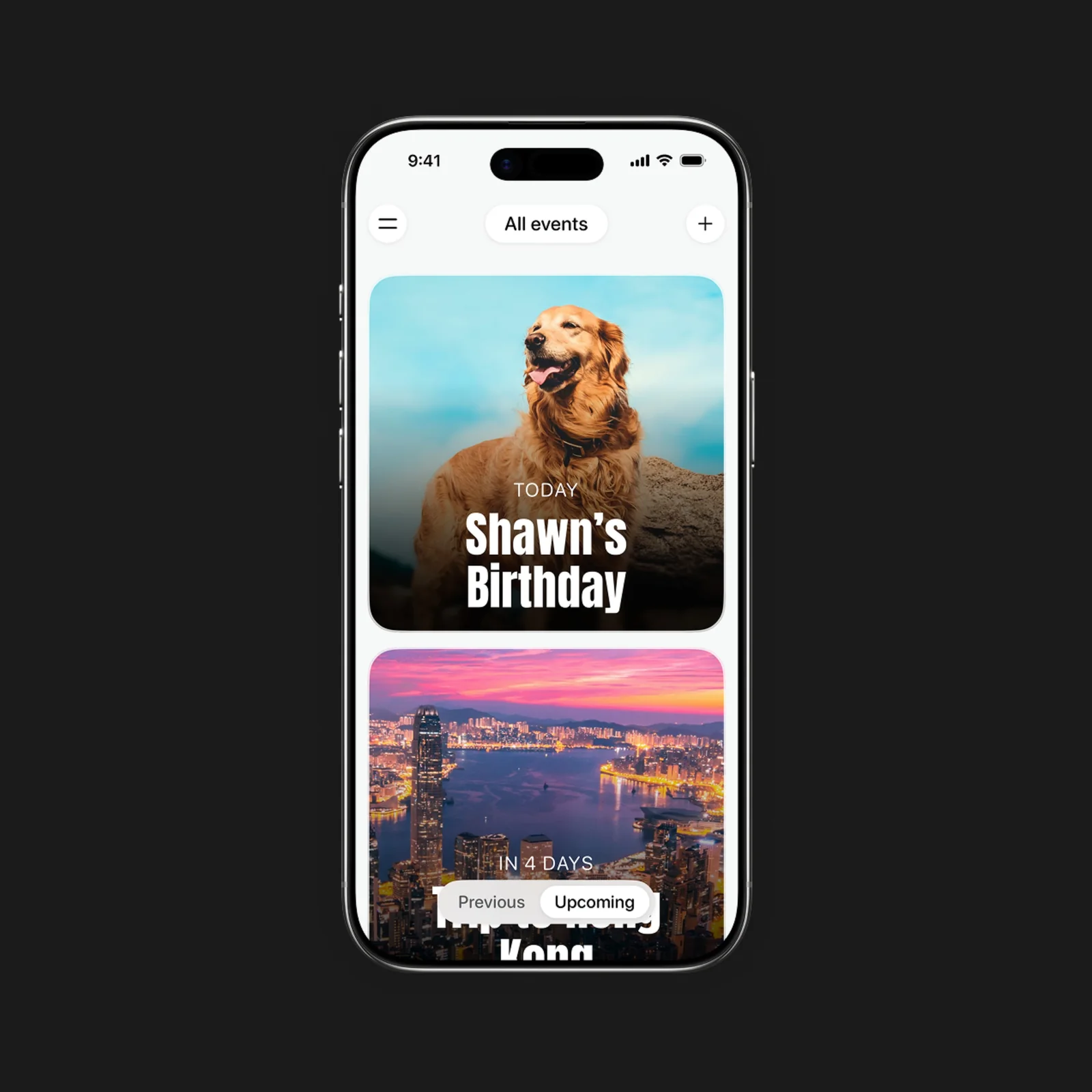
The main list puts a large countdown on each event card. Photos make the entries easy to recognize, while the day count answers the question that sent you to the app.
This is helpful when a calendar month is too dense. Days removes meetings and routine tasks from the view, leaving only the dates you chose to follow.
Add an event without much setup
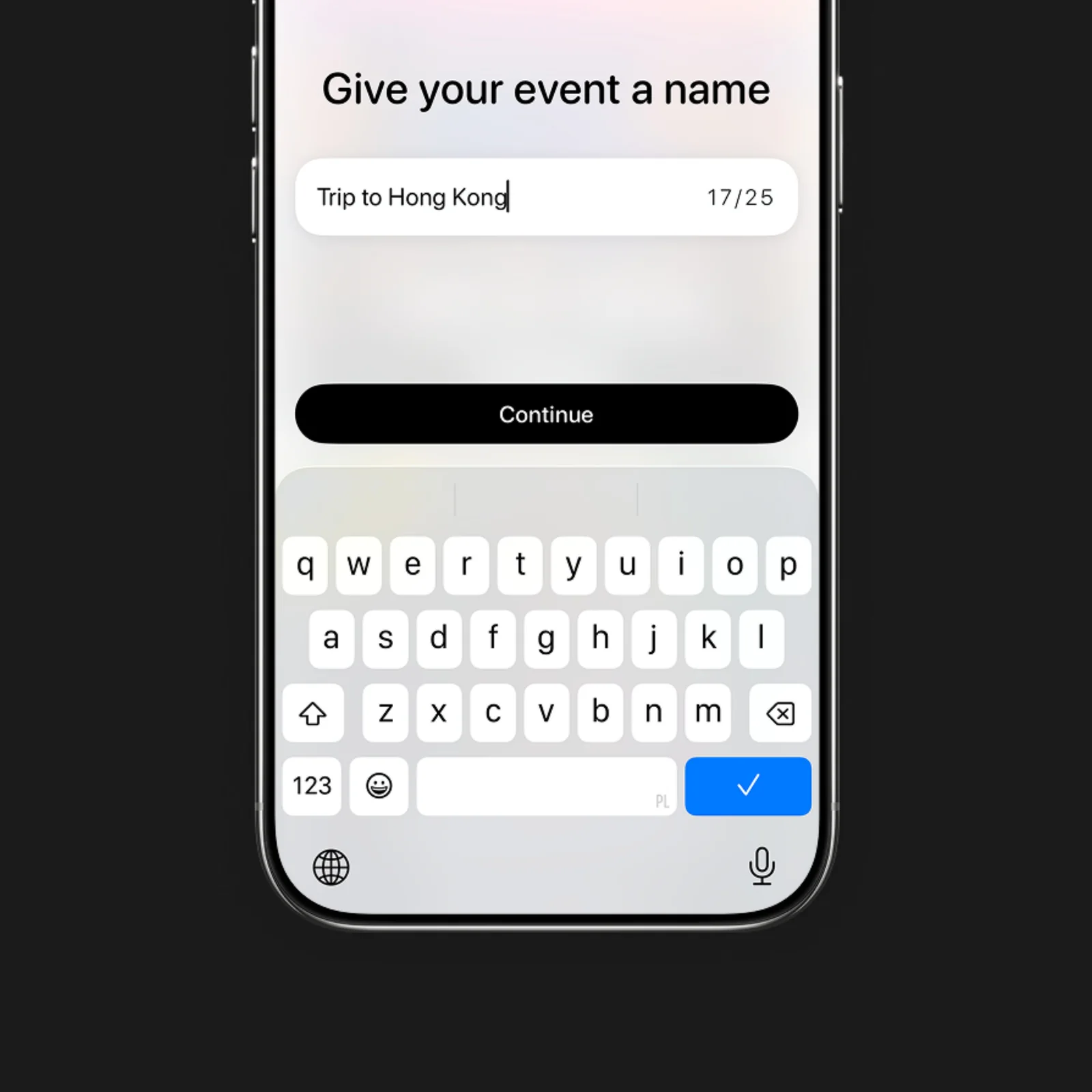
Creating a countdown begins with a name and date. You can then choose a photo and adjust how the event appears. The short setup makes it practical to add a date as soon as someone mentions it.
Repeating events are useful for birthdays and anniversaries. One-time events suit trips, deadlines, or a product launch. Keeping the title specific helps when several countdowns sit together.
Choose the exact date and repeat rule
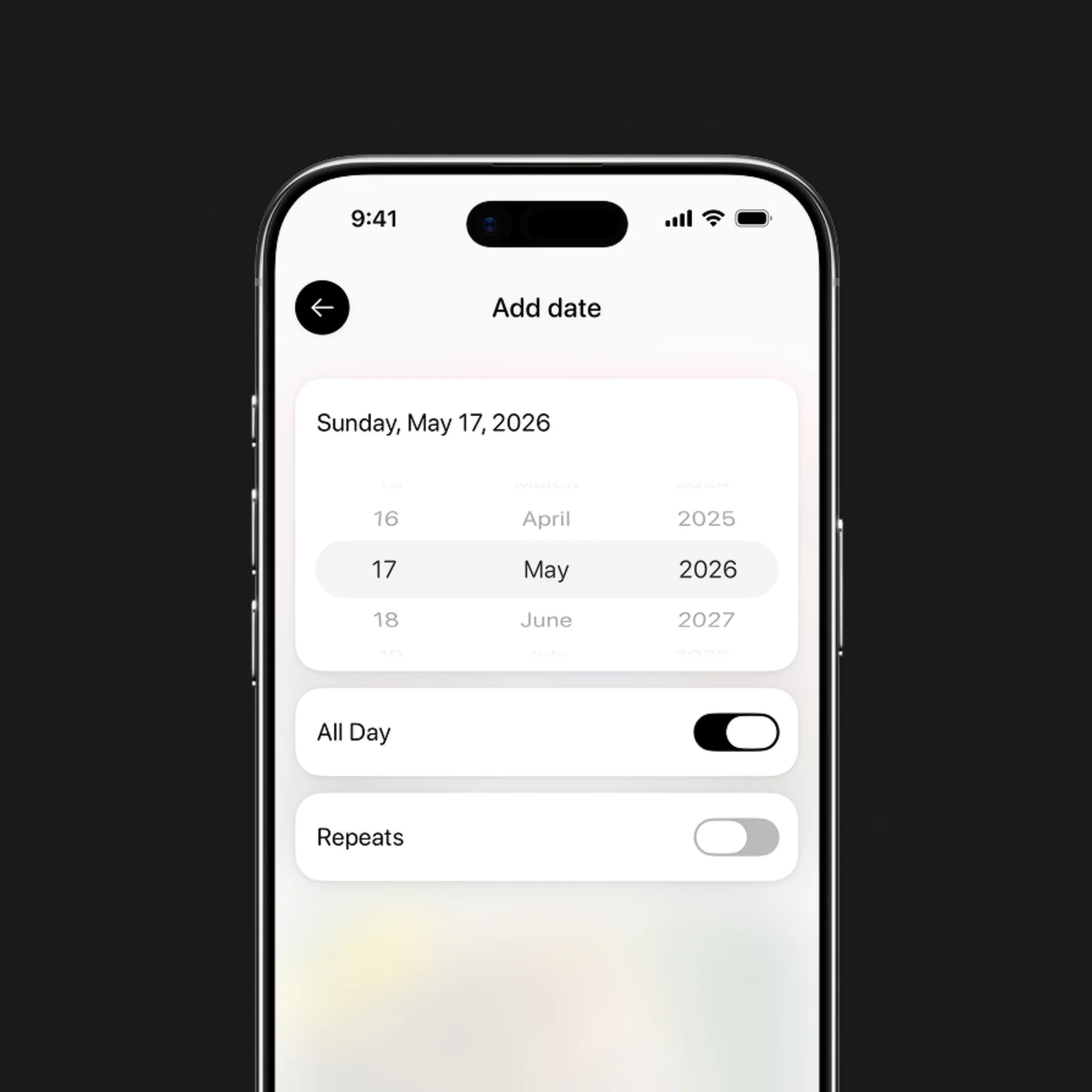
The date screen includes all-day and repeat controls. These are simple details, but they stop a yearly event from becoming another item you must recreate later.
Once the event exists, a widget can keep the countdown on the Home Screen. This is the most useful part of the app if you want the reminder to stay visible without opening anything.
What to know before you try Days
Days is free to download and includes optional paid features. The current listing supports iPhone, Mac, Apple Vision, and Apple Watch, with iOS 17 or later required on iPhone.
Countdowns can be motivating, but too many make the Home Screen noisy. Keep the visible widget for a date that changes what you do now, such as booking travel or preparing a gift. Events that need several actions should still have tasks in Reminders or another planning tool. Days tells you how long is left; it does not manage the work.
Photo choice affects readability as well. Use an image with enough contrast behind the count and check the small widget size before you settle on it. A beautiful event card is not useful when the number disappears into the picture.
Choose Days if you want anticipation, not another full calendar. Add the nearest event first and place one widget on the Home Screen. If seeing the count feels useful after a week, add the dates farther away.
Check the date and time zone before sharing a countdown with someone elsewhere.