
Notion Calendar combines events from several calendars and puts linked Notion work close to the meeting. It is a practical choice when the schedule and the notes, project page, or task behind it usually live in different places.
The iPhone app is free. It is strongest for people who already use Google Calendar and Notion, but the clear calendar views are useful even before you link a project page.
See several calendars and time zones together
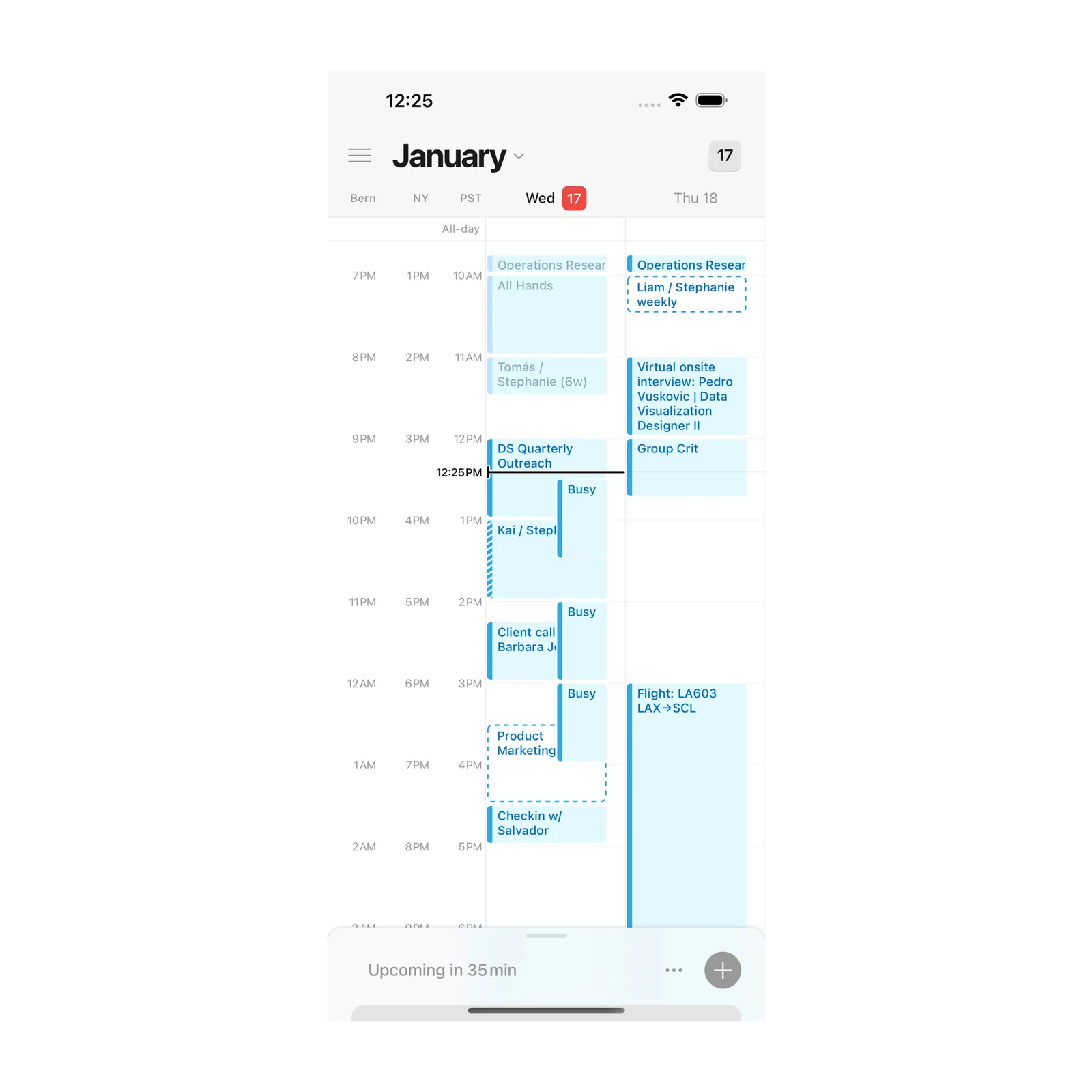
The main view can combine work and personal calendars without removing their separate colors. Multiple time zones appear together, which is helpful when a meeting includes people in different countries.
A unified view reduces the chance of booking over a personal event that was hidden in another account. You can still turn individual calendars on or off when the full schedule becomes too busy.
Add the meeting details in one place
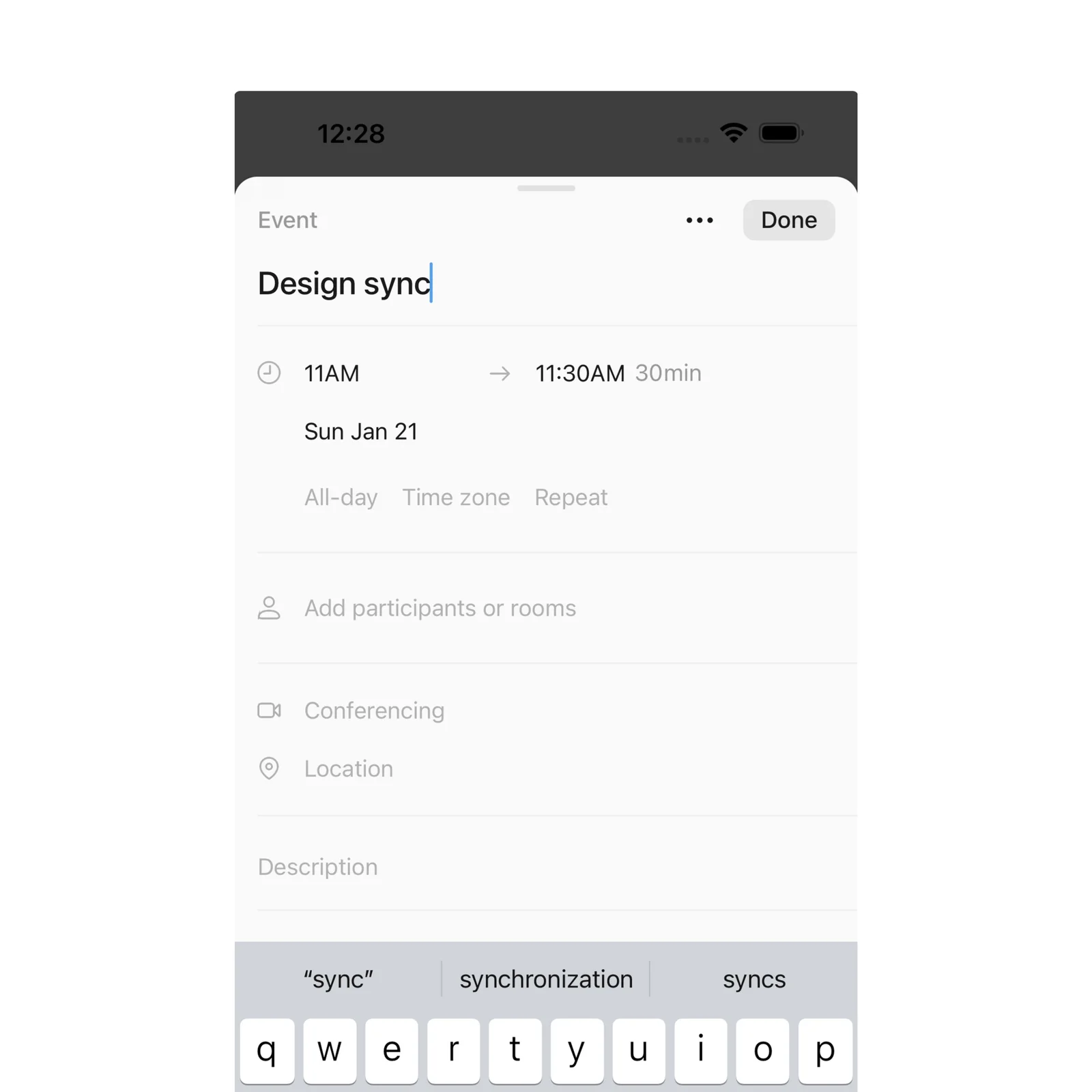
The event editor includes the expected title, time, participant, and location fields. Meeting links and connected Notion pages can sit with the event, so the context is ready when the call begins.
This is more useful than adding a vague event called “review.” Link the page or project that must be reviewed and include the people who need it. The calendar then becomes an entry point into the work, not only a reminder that it exists.
Keep the next event on the Home Screen
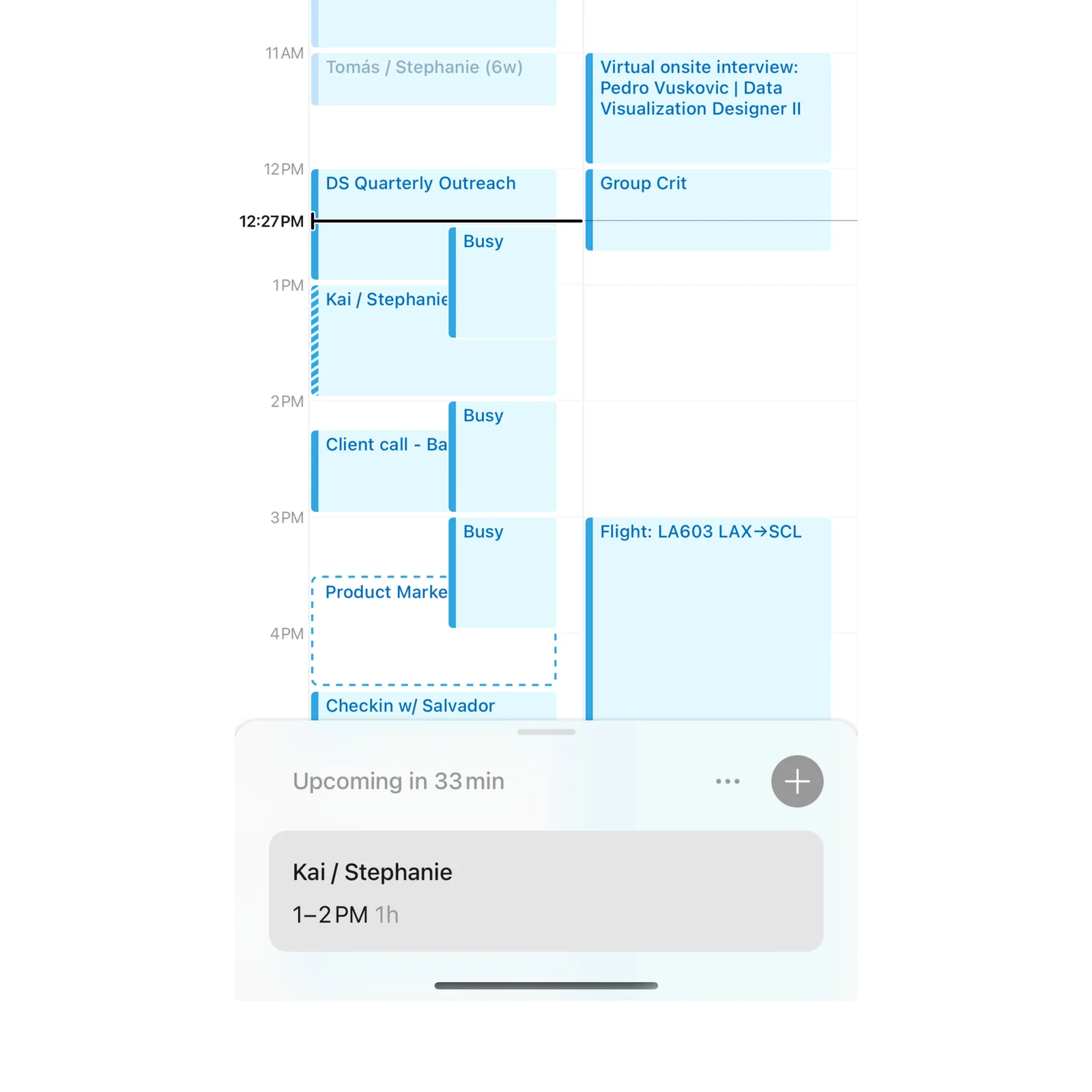
Six Home Screen widgets cover upcoming events, month views, and quick event creation. A small next-event widget is enough if you only want to see what is coming without opening the full calendar.
Widgets also make the mobile app more useful between meetings. You can check the next title and time, then open the related event only when you need the details.
What to know before you try Notion Calendar
Notion Calendar is free and currently supports iPhone and Apple Vision. It works with Google Calendar accounts. If your schedule uses another provider, check current account support before moving your workflow.
Connecting work pages to events can expose more context to invited people than a plain calendar title would. Check sharing permissions on the linked Notion page and the event itself. A link is useful only when the right participants can open it and people outside the project cannot.
Calendar consolidation also makes color and naming more important. Give work, personal, and shared accounts distinct colors, then hide calendars that add noise. The unified view should make conflicts easier to see, not create one dense wall of events.
Start by connecting one calendar, then link one real Notion page to an event. That small test shows whether having the context beside the meeting saves you time.
Check that invited people can open it.