

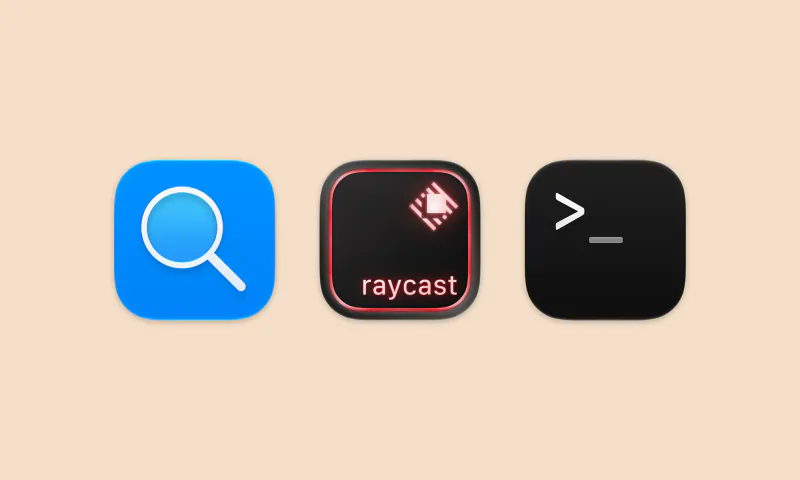
The best place to write something down is wherever you already are. On a Mac, that usually isn't the Capture window. It's Spotlight, a launcher like Raycast, or a terminal with an AI agent in it.
So Capture for Mac now works from all three. You can find and create captures from Spotlight, run Capture commands from Raycast, and let scripts and agents read and write your notes through a command-line tool that ships inside the app. None of it needs an account or a server. Everything talks to the captures on your Mac.
Spotlight
Press ⌘Space and type. Your captures show up next to your files and apps, with a Capture filter at the top to see only those. Return opens the result straight in Capture. To search only your captures, type "capture" and press Tab.
Since macOS Tahoe, Spotlight can also run app actions. Type "create capture" and press Tab, and the search field turns into a Capture field. Type your note and press Return. The note goes to your inbox and Capture stays closed. If you use it a lot, Spotlight lets you give the action a quick key.
Search has been there since Capture 3.0, which indexes every capture you haven't archived. The Create Capture action arrived in 3.4.3. There is nothing to set up for either one.
Raycast
If Raycast is your launcher, install Capture - Quick Notes from the Raycast Store. It has five commands:
- Quick Capture saves a note straight from the root search. Type "quick", press Tab, write the note and, if you want, the name of one of your lists, then press Return.
- Add Capture opens a small form for text or a link and a list.
- Capture Clipboard saves whatever you just copied, text or a file.
- Search Captures lists everything, with a filter per list. From there you can open, archive, restore or delete a capture.
- Create List makes a new list without opening the app.
Give Quick Capture a hotkey or an alias and it's two keystrokes from anywhere. Raycast AI can use Capture too. Mention @capture and ask in plain words: "what did I save about SwiftData?", "move the Lisbon note to Travel", "remind me about the invoice on Friday". It finds captures, edits them, sets or clears a date, and asks first before it deletes anything.
The Capture CLI
The extension above doesn't talk to Capture directly. It calls capture-, a small command-line tool that has shipped inside Capture for Mac since 2.15. You can call it yourself:
alias capture-cli="/Applications/Capture.app/Contents/Helpers/CaptureCLI.app/Contents/MacOS/capture-cli"

capture-cli list --query "invoice" --limit 5
capture-cli add --list Work --content "Pay the Q3 invoice"
Every command answers in JSON. list searches and filters, lists shows your lists, get returns one capture with its links, phone numbers and attachments, attachment writes a file out, and add, update, archive, delete and add- change things. help returns the whole command guide as JSON, including a mutates flag on every command, so a script knows which ones change your data.
That makes it easy to build on. A Shortcuts or cron job can pull today's captures into a daily note. A shell script can save every screenshot in a folder as its own capture with -. And an AI agent like Claude Code or Codex can read your inbox, turn a pile of saved ideas into a plan, and add the plan back to Capture.
If you want to try that last one, the Capture page has a ready-made prompt. Copy it into your agent and it finds the CLI, reads your recent captures, and suggests what to do next. The prompt tells the agent to ask you before it changes, archives or deletes anything.
Where to get it
All of this is in Capture for Mac. Spotlight search needs Capture 3.0, the Spotlight action needs 3.4.3, and the CLI and the Raycast extension need 2.15 or later with Capture in your Applications folder. If you already have Capture on your Mac and it's up to date, you have everything above.
Install the Raycast extension from the Raycast Store, and read the CLI guide in the FAQ for the full command list. Everything else is already in the app.
Get Capture for Mac, iPhone, iPad, Apple Watch and Apple Vision Pro.
